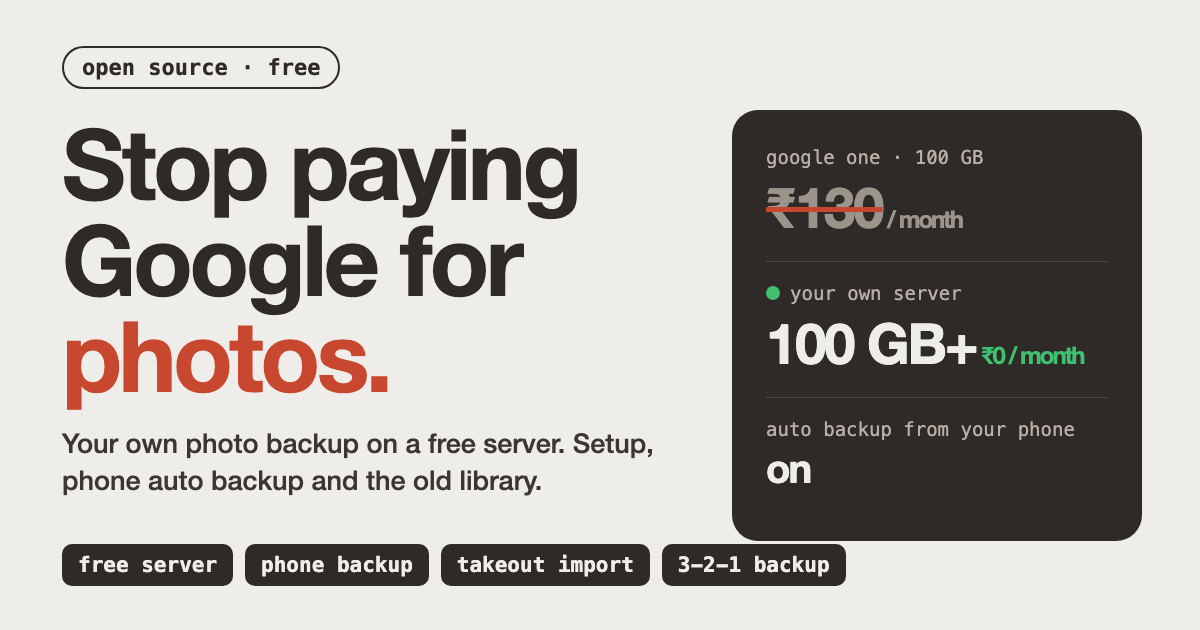
Your Google storage is full, so Google Photos stops backing up your new photos. The fix Google offers is Rs 130 a month for 100 GB, every month, for as long as you want to keep your photos.
The other fix is to run the app yourself. It is called Immich, it is open source, and it runs on the free Oracle server from my last guide. Your phone uploads every new photo to your own server, and it feels a lot like Google Photos.
This guide is the whole route: the server, the install, the phone app, moving your old photos out of Google, and the three warnings that matter. Read the warnings before you cancel anything.
Move it. Check it. Back it up twice.
// Build this with your AI agent
Build this with your AI agent
Want to try this? Copy the setup prompt into your coding agent with this guide's link.
Read this guide: https://codewithnishant.dev/free/free-google-photos-alternative/ and the official Immich, Oracle, Docker and Tailscale docs it links to. I have an Oracle Cloud Always Free Arm Ubuntu server I can SSH into, with Docker and the Compose plugin installed. Help me run Immich on it as my own free Google Photos replacement. Ask me for the server's public IP and my SSH key path, then connect as ubuntu. Check free disk space and tell me if it is too small for my photo library. Follow Immich's Docker Compose steps in ~/immich-app, with a letters-and-numbers database password that you generate and keep only in the .env file (do not print it), and my timezone set to Asia/Kolkata. Do not open port 2283 anywhere. Install Tailscale on the server (I sign in myself) and give me the private address for the phone app. Do not import my Google Photos or delete anything. Preserve unrelated work, ask only for missing inputs, and tell me if you cannot read a page or run a command. Ask before anything that costs money. Finish by showing docker compose ps, the private address, and anything still incomplete.
01. What you get
It does not stop at a backup folder
Immich describes itself as a self-hosted photo and video manager. The feature list in its README covers the things most people use Google Photos for.
| What you want | What the app does |
|---|---|
| Auto backup | New photos and videos upload from your phone when you open the app, and in the background |
| Find a photo | Search by metadata, objects, faces and CLIP. In plain words: type "beach" and it finds beach photos |
| People | Face recognition groups photos by person |
| Places | A global map of where your photos were taken |
| Old photos back to you | Memories from years ago, like the ones Google shows |
| Share | Albums and shared albums, plus live and motion photos |
The license is AGPL-3.0, so anyone can read the code. The apps for iPhone and Android and the web version come with it. It does not copy every Google feature, so look through the feature list on GitHub before you move your whole life across.
02. What it costs
Compare it with Rs 130 a month
| Item | Price | Source |
|---|---|---|
| Google storage, 15 GB shared with Gmail and Drive | Free | Google One India page, 17 November 2026 |
| Google One Basic, 100 GB | Rs 130 a month | Google One India plans page, 17 November 2026 |
| The photo app itself | Free, open source | Immich docs and GitHub |
| Oracle Always Free Arm server | Rs 0 inside the free limits | Oracle's Always Free page |
| Tailscale Personal plan | $0 | Tailscale pricing page |
| immich-go, for the old library | Free, open source | Its GitHub page |
The app also has an optional paid Purchase page, for one user or a whole server. I cover it in section 09. You can ignore it.
Free offers can change. Oracle's limits and Google's prices are today's numbers, so recheck them before you rely on them.
03. Will your free server cope?
Immich's requirements against Oracle's free server
| Immich asks for | Oracle free server has | Verdict |
|---|---|---|
| RAM: at least 6 GB, 8 GB recommended | 12 GB | Fits |
| CPU: at least 2 cores, 4 recommended | 2 OCPUs | Meets the minimum only |
| Platform: amd64 or arm64 | Arm (Ampere A1) | Fits |
| Docker with the Compose plugin | You install it (my Oracle guide, section 06) | Fits |
| Disk: your library, plus 10 to 20% for thumbnails and transcoded video | 200 GB for the whole account, boot and block volumes together | Depends on your library |
Two things to know before you start.
The CPU is the slow part. Immich recommends 4 cores and Oracle's free Arm server gives you 2. It works, but the first import and the face scan will take a long time. I have no timing numbers, so I will not guess. Let it run overnight and do not judge it on the first hour.
The default disk is too small for photos. Oracle gives a new server a 50 GB boot disk. For a photo library, set a bigger boot volume when you create the server, for example 150 GB, and keep the rest of the 200 GB for anything else you run. If your server already exists, you can grow the boot volume in the Oracle console and then extend the partition with oci-growfs, as described on Oracle's boot volume page. Check how much of the 200 GB your other servers already use.
My rough plan is 100 to 150 GB of photos and videos on this server. That is an estimate from the numbers above, not a measurement.
No server yet? Do sections 02 to 06 of my Oracle free server guide first: sign up, pick a region, create the Arm server and install Docker. Then come back here.
04. Install it with Docker Compose
From Immich's official install docs
Immich's docs recommend Docker Compose for running it for real. SSH into your server, then:
On your Oracle server
mkdir ~/immich-app
cd ~/immich-app
wget -O docker-compose.yml https://github.com/immich-app/immich/releases/latest/download/docker-compose.yml
wget -O .env https://github.com/immich-app/immich/releases/latest/download/example.env
Now open the .env file (nano .env) and change three things:
- UPLOAD_LOCATION: where your photos are stored. The default
./libraryputs them inside theimmich-appfolder, on your boot disk. That is fine if you made the boot volume bigger. - DB_PASSWORD: set your own value. Immich's docs say to use only letters and numbers, so Docker does not misread it. The database is not exposed to the internet, so it is only used inside the server. Something like
openssl rand -hex 16makes a good one. - TZ: remove the
#at the start of the line and set your timezone, for exampleTZ=Asia/Kolkata.
Then start it:
docker compose up -d
docker compose ps
The first start downloads several images, so it takes a few minutes. When docker compose ps shows the containers running, the app is up.
Do not open port 2283. That is the port the app listens on. Immich's docs warn against exposing it directly to the internet, because the traffic would be plain http. Oracle's network blocks it by default, so leave it alone. Do not add an ingress rule for 2283 in your Oracle security list. Docker publishes ports around Ubuntu's own firewall rules, which is why the Oracle security list is the lock that matters here. Section 05 gives you a safe way in.
If you see unknown shorthand flag: 'd' in -d, you have an old Docker from Ubuntu's own packages. Use Docker's official packages (the get.docker.com script from my Oracle guide installs them). The command is docker compose with a space, not docker-compose.
05. Reach it from your phone, privately
Tailscale, no open ports
Immich's docs list three safe ways to reach your server from outside your home: a VPN, Tailscale, or an https reverse proxy with your own domain. Tailscale is the easiest of the three and its Personal plan is free, so that is what this guide uses. It makes a private, encrypted link between your devices. Your server never opens a public port for the app.
- Make a free account at tailscale.com.
- On your Oracle server, run Tailscale's install script, then start it and open the sign-in link it prints:
On your Oracle server
curl -fsSL https://tailscale.com/install.sh | sh
sudo tailscale up
tailscale ip -4- Install the Tailscale app on your phone and your laptop and sign in to the same account.
- The last command prints the server's private address, which starts with 100. Open
http://YOUR_TAILSCALE_IP:2283in your laptop's browser. You should see Immich's welcome page.
The address starts with http, not https, but it travels inside Tailscale's encrypted tunnel. The catch: your phone needs Tailscale switched on when it backs up. If you want to open the app from any browser with no extra app, set up an https reverse proxy instead. That is more work, and Immich's remote access page explains it.
06. Create your account and turn on backup
Five minutes
- Open
http://YOUR_TAILSCALE_IP:2283and click Getting Started. The first account you create is the admin account. Use a strong password. - Install the Immich app on your phone: Apple App Store or Google Play. Turn Tailscale on first.
- In the app, enter the server address
http://YOUR_TAILSCALE_IP:2283and sign in. - Tap the cloud icon in the top right corner, choose the albums to back up (start with your camera album), and press Enable Backup.
From then on, the app uploads new photos when you open it and in the background. Per Immich's docs, it only uploads over Wi-Fi by default, and you can change that in the backup settings. It uses a checksum of each file, so a photo that is already on the server is skipped instead of uploaded twice.
- Android: some phones kill background apps hard. If backup stops, check your battery settings. Immich links to dontkillmyapp.com for each brand.
- iPhone: turn on Background App Refresh (Settings, General, Background App Refresh). iOS decides when the background upload runs, so open the app often.
Turn on Immich backup before you touch Google. For a few weeks, let both apps back up your new photos. That is your safety net.
07. Move your old Google Photos library
Google Takeout plus immich-go
Your phone backup only covers new photos. To bring the old library, you export it from Google, then upload the export. The upload tool is immich-go. It is a community project, not made by the Immich team, so check its release notes for your Immich version before you run it. At the time I read it, its latest release was v0.32.0 from June 2026, and Immich's latest was v3.4.1 from 11 November 2026.
Step 1: export from Google Takeout
- Go to takeout.google.com. Deselect everything, then select only Google Photos.
- Choose .zip as the file type. immich-go reads zip files directly. It does not read .tgz, which you would have to unpack first.
- Choose the biggest file size Google offers. Google splits larger archives into several files, and its help page says picking the 50 GB limit makes a split less likely.
- For the delivery method, choose Send download link via email. The Add to Drive option counts against your storage, and your storage is the problem.
- Download every part to your laptop, not to the server. Google's help page says an archive expires in about 7 days and can only be downloaded 5 times, so do it soon.
The files are named like takeout-001.zip, takeout-002.zip. Check that every part is there. A missing part means missing photos.
Step 2: make an Immich API key
In the Immich web app, go to Account Settings, API Keys, New API Key. immich-go's docs list the permissions it needs: asset.read, asset.statistics, asset.update, asset.upload, asset.copy, asset.delete, asset.download, album.create, album.read, albumAsset.create, server.about, stack.create, tag.asset, tag.create and user.read. For the admin account, add job.create and job.read so the tool can pause Immich's background jobs while it uploads. Copy the key once. Treat it like a password and never paste it into a page or chat.
Step 3: install immich-go on your laptop
Download the right file from the immich-go releases page (macOS, Windows and Linux builds are there), or on a Mac with Homebrew run brew install immich-go. Run it on your laptop, not on the Oracle server. The zips stay on your laptop, so your 200 GB is not used twice.
Step 4: run a dry run, then the real import
Turn Tailscale on for your laptop, then do a test run first. --dry-run simulates the upload without sending anything.
On your laptop
immich-go upload from-google-photos --dry-run \
  --server=http://YOUR_TAILSCALE_IP:2283 \
  --api-key=YOUR_API_KEY \
  /path/to/takeout-*.zip
If the output looks sensible, run the same command again without --dry-run. By default it also recreates your Google albums in Immich. Photos that Google has in the trash are skipped by default, and files with no metadata file are skipped unless you add --include-unmatched. A big library takes a long time, and the server will be busy with thumbnails and faces for a while afterwards. That is normal.
08. Back it up twice before you delete anything
The part people skip
Right now your photos exist in one place: a free server that you do not fully control. Immich's own README opens with this warning: always follow a 3-2-1 backup plan. That means 3 copies of your photos, on 2 kinds of storage, with 1 copy somewhere else.
Immich's automatic database backups are not enough. They are saved inside the same upload folder on the same disk, and they hold only metadata, not your photos. Immich's docs say it does not back up your files for you. You have to arrange that yourself.
Here is a simple setup that gets you to 3 copies:
- Copy 1: the photos on the Oracle server.
- Copy 2: a copy on your laptop or an external drive. With Tailscale on, this pulls the whole upload folder to your laptop (the ssh key is the one from your Oracle guide):
On your laptop
rsync -av -e "ssh -i ~/Downloads/your-key.key" \
ubuntu@YOUR_TAILSCALE_IP:~/immich-app/library/ ~/immich-backup/- Copy 3: your original Takeout zip files, kept on a drive or cloud space that is not the Oracle account. Oracle's free volume backups are useful, but they live in the same Oracle account, so they do not count as the copy somewhere else.
The rsync line is my suggestion. Immich's docs only say which folders matter: the library, upload and profile folders hold your originals, and the database dumps sit in backups. Copying the whole folder covers all of them.
Check the import before you trust it
- Open a few years in the timeline: first year, middle, last month. Do the dates look right?
- Open your biggest albums. Are they there?
- Play three videos, including a long one.
- Search a word like "beach" and a person you know.
- Open a few photos at full size and check that they are sharp.
Do not delete anything from Google Photos yet. Keep it until the import checks out and copy 2 and copy 3 exist. For the first few weeks, let your phone back up to both. Only when you have run on Immich for a while should you free up or cancel Google storage.
09. Keep the server alive, and know the paid option
Oracle's idle rule, updates and Purchase
Oracle can reclaim an idle free server. Per Oracle's Always Free page, an Always Free compute instance may be reclaimed if, over 7 days, CPU use (95th percentile) is under 20%, network use is under 20%, and, for Arm servers, memory use is under 20%. Immich keeps several containers and a database running, so memory use is likely to stay above 20% of your 12 GB. That is my inference, not a promise. You can watch your instance's metrics in the Oracle console. If Oracle ever takes the server, the data on it is gone, which is exactly why section 08 exists.
Upgrade on purpose. Immich releases often. Before an upgrade, read the release notes for breaking changes. Then, in the immich-app folder, run docker compose pull && docker compose up -d, as Immich's upgrade page says. Immich's docs also say to upgrade your phone apps before the server, and that downgrading is not supported.
The Purchase page. Immich has an optional paid Purchase, for one user or a whole server. Its docs say it supports the team, and that all features stay free with nothing behind a paywall. So it is a way to say thanks, not something you need.
Looking for more to run on the same free server? My free bot guide and the app ideas in the Oracle guide both fit on it.
10. Common problems
Quick fixes
| What you see | What to do |
|---|---|
| The phone app cannot connect | Check Tailscale is on, on both the phone and the server, and that the address and port 2283 are right. Open the same address in a browser first. |
unknown shorthand flag: 'd' in -d | Old Docker from Ubuntu's packages. Install Docker's official packages, and use docker compose. |
An error about healthcheck.start_interval | Your Docker is older than version 25. Update Docker, or comment out the start_interval line in the database section of the compose file, as Immich's docs say. |
| Backup stops when the phone sleeps | Android: loosen the battery limit for the app. iPhone: turn on Background App Refresh and open the app now and then. |
| Faces and search are empty for hours | Normal after a big import on 2 CPUs. The server is still processing. Let it run. |
| The disk fills up | Check df -h. Remember thumbnails and transcoded video add 10 to 20%. Grow the boot volume, or import less. |
| Some photos have the wrong date after import | Check the Takeout had every part. Files missing their metadata can be imported with --include-unmatched, and you should review those by hand. |
| immich-go errors after an Immich update | It is a community tool. Check its release notes for your Immich version and update it. |
The Docker, phone and backup fixes come from Immich's docs. The "empty faces" and "wrong date" rows are my own reading of how the pieces fit, and I did not measure them.
11. FAQ
What is the free Google Photos alternative in this guide?
It is Immich, an open source photo and video backup app you run on your own server. It has apps for iPhone and Android, auto backup from your phone, search by word, face recognition, a map and memories. It is licensed under AGPL-3.0, and the app is free to use. This guide runs it on Oracle's Always Free Arm server.
Is Immich really free? What is the Purchase page?
The app is free and open source. Immich also has an optional Purchase page, for one user or a whole server. Immich's own docs say the purchase supports the team, and that all features are free forever with nothing behind a paywall. You do not need to buy anything to follow this guide.
Can Oracle's free server run Immich?
On paper, yes. Immich asks for at least 6 GB of RAM and 2 CPU cores, and it runs on arm64. Oracle's Always Free Arm server gives you 2 OCPUs and 12 GB of RAM. The CPU is below Immich's recommended 4 cores, so the first import and face scan will be slow. I read the docs for this guide, I did not run it on a fresh server.
How much photo storage do I get?
Oracle gives 200 GB of block storage in total, shared by every boot volume and block volume on the account. The system, the database and Immich's thumbnails also use space, and Immich says thumbnails and transcoded video add 10 to 20% on average. Plan on roughly 100 to 150 GB of photos and videos, which is my estimate, and check your own library size first.
Can I delete Google Photos after I import?
Not straight away. Check the import first: look through your years, albums and videos in the new app. Then make sure you have a second copy outside the Oracle server. Immich's docs say to follow a 3-2-1 backup plan, which means 3 copies, on 2 kinds of storage, with 1 copy somewhere else. Only after that should you think about cancelling Google storage.
What if Oracle takes my free server back?
Oracle's docs say Always Free compute instances that look idle for 7 days may be reclaimed. If that happens you lose the server and everything on it. A server that runs Immich every day is usually not idle, but I cannot promise it. This is the main reason to keep a second copy of your photos somewhere else.
Does it work on iPhone as well as Android?
Yes. Immich has apps in the Apple App Store and Google Play. On Android, strict battery settings can stop background backup. On iPhone you need to turn on Background App Refresh, and iOS decides when background uploads run, so opening the app often helps.
12. Sources and what I checked
Checked 18 November 2026
Versions, prices and limits change. Recheck them before you rely on them. These are the sources for this guide.
- Immich: requirements: the 6 GB and 2 core minimums, arm64, and the 10 to 20% thumbnail overhead.
- Immich: Docker Compose install: the compose and .env files, the .env settings,
docker compose up -dand the Docker version notes. - Immich: post install: the admin account, the phone apps, backup and the 3-2-1 note.
- Immich: mobile backup: Wi-Fi default, background behavior, Android and iPhone notes.
- Immich: remote access: the warning about port 2283, and the VPN, Tailscale and reverse proxy options.
- Immich: backup and restore: automatic database dumps and which folders to copy.
- Immich: upgrading: release notes, the pull command and versioning.
- Immich: support the project: the optional Purchase and "all features free".
- Immich on GitHub: the feature list, AGPL-3.0 license and the 3-2-1 warning in the README.
- immich-go on GitHub: the Google Photos import, API key permissions,
--dry-runand its releases. A community tool. - Google: download your data: archive format, the 50 GB limit, Add to Drive, the 7 day expiry and 5 downloads.
- Google One plans: 15 GB free and Rs 130 a month for 100 GB on the India page, read 17 November 2026.
- Oracle: Always Free resources: 2 OCPUs and 12 GB, 200 GB of block storage, and the idle reclaim rule.
- Oracle: extend a boot volume partition: growing the disk with oci-growfs.
- Tailscale: install on Linux and pricing: the install script and the free Personal plan.
What I checked, and what I did not
I read the pages above on 18 November 2026 and checked each step and number in this guide against them. I did not run this whole setup end to end for this page, and I did not time an import, so I give no speed numbers. The 100 to 150 GB figure is my estimate, and the idle reclaim point is my reading of Oracle's rule. I did not test immich-go against Immich v3.4.1, so check its release notes first. Before you delete anything from Google, check your own import.
Your photos should live in more than one place. Move them, check them, back them up twice, then decide about Google.
// Free newsletter
I send out guides like this every week
Real setups, real sources, no hype. Drop your email and I'll send you the next one.