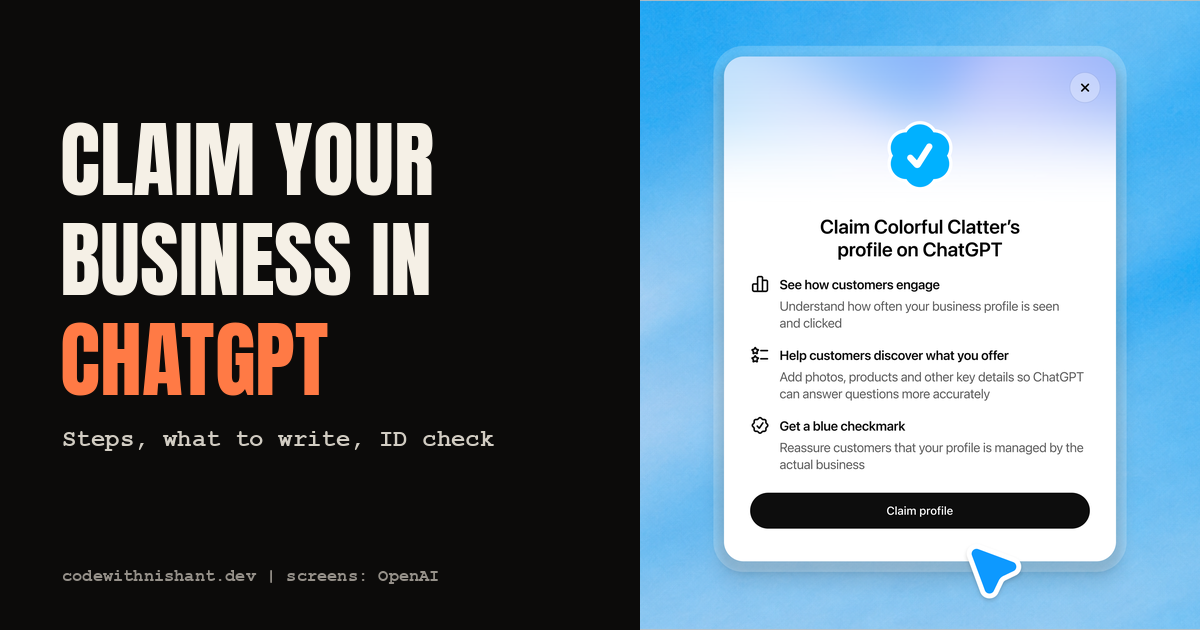
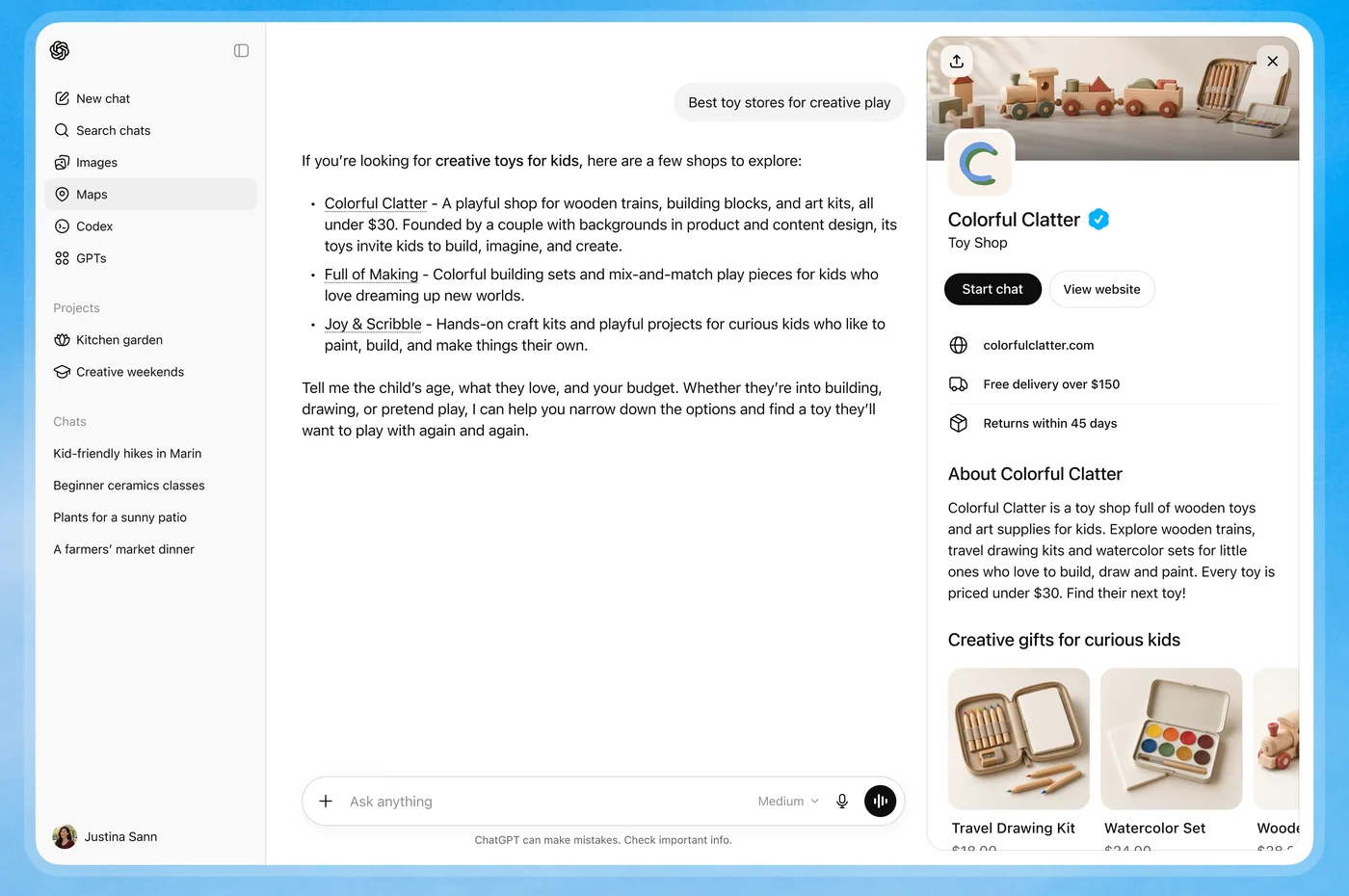
Remember when Google Maps listings were new, and the shops that claimed theirs early started getting the calls? This feels like that again. On 10 November 2026 OpenAI launched Businesses in ChatGPT in beta, a way to claim your business inside a product that, by OpenAI's count, 1.2 billion people use every week. If you do nothing, ChatGPT still talks about you. It just uses whatever it finds online.
ChatGPT already describes your business. Make sure it reads your version.
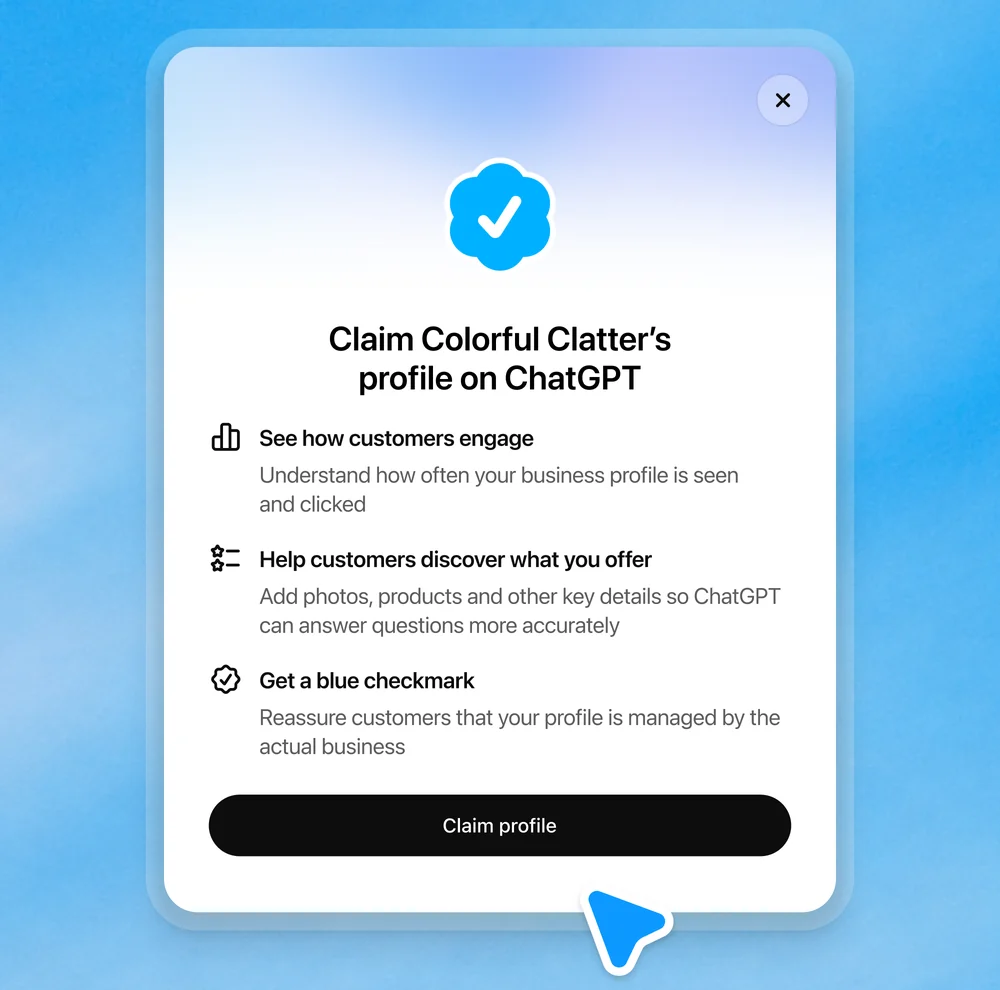
One honest thing before the steps. Claiming does not push you up the list. OpenAI says plainly that it does not guarantee higher placement or sales. What it does is let you hand ChatGPT your real details: what you sell, your prices, your return policy. And it shows you how often you come up.
// Build this with your AI agent
Build this with your AI agent
Want your profile text drafted before you open Business Hub? Paste this into ChatGPT or Claude, with your website link. It only drafts. Nothing gets submitted.
Read this guide: https://codewithnishant.dev/free/chatgpt-business-profile/ and my website: [your website URL]. Draft my ChatGPT business profile from what is actually on my site. Give me: 1) a business description under 300 characters that says what I sell, who it is for, where I serve and one concrete detail like a price range or delivery area, in plain words with no hype; 2) my delivery policy and return policy in one or two short sentences each, copied in meaning from my site's policy pages; 3) my product or service category; 4) my hours and contact details as my site lists them. Mark anything you could not find on my site as MISSING instead of guessing. Do not invent reviews, awards, guarantees, prices or stock. Then list three questions a customer might ask ChatGPT about my business that my site does not answer yet.
01. The whole setup in 7 steps
The short answer: sign in to ChatGPT, open Business Hub, search your business and claim it. Verify with your phone, business email, website domain or Shopify. Pass the Persona ID check to get the blue check. Then edit your profile, add a product feed if you sell products, watch Insights, and, if you sell online in the US, publish a Business Agent.
| # | Step | Where | You need |
|---|---|---|---|
| 1 | Find and claim your business | Business Hub in the ChatGPT sidebar | A ChatGPT account |
| 2 | Verify the claim | Claim flow | Business phone, business email, DNS access or your Shopify login |
| 3 | Persona ID check, then the blue check | Verify with Persona | Government ID, business registration, proof you represent it |
| 4 | Edit your profile | Business tab, your profile | Description, logo, policies, hours |
| 5 | Connect a product feed (optional) | Your profile | A CSV feed, a hosted feed URL or Shopify |
| 6 | Read Insights | Business Hub, Insights | An approved Persona check |
| 7 | Publish a Business Agent (US only) | Business tab, agent | An eligible US ecommerce or online service business with a website |
Steps 4 to 7 all wait on step 3. OpenAI's help article says you need an approved Persona check before you can publish changes, connect a product feed, view insights or create an agent.
02. Who can claim, and the honest limits
You can claim a business if you own it or are authorized to represent it. You do not need an Ads account or a ChatGPT Enterprise deal. Shopify is optional. The fine print, all from OpenAI's own pages:
- It is a beta. OpenAI calls the whole thing an early step and says it plans to expand to more markets and categories over time.
- Availability depends on where you are and what you sell. You can claim where ChatGPT is available and the required verification is supported. OpenAI's FAQ also says claiming is initially for eligible businesses with a website.
- Local stores and restaurants can currently claim only an existing US listing. Eligible online businesses may see an option to add a new one.
- Business Agents are US only for now, and only for eligible ecommerce and online service businesses with a website.
- No ranking boost. "Claiming does not guarantee higher placement or sales," says the Businesses in ChatGPT page. Ads do not change ChatGPT's independent answers either.
- Changes are reviewed. OpenAI reviews and publishes your edits, so they take time to show, and ChatGPT may still use other sources about you.
03. Step 1: find your business in Business Hub
Step 1 of 7
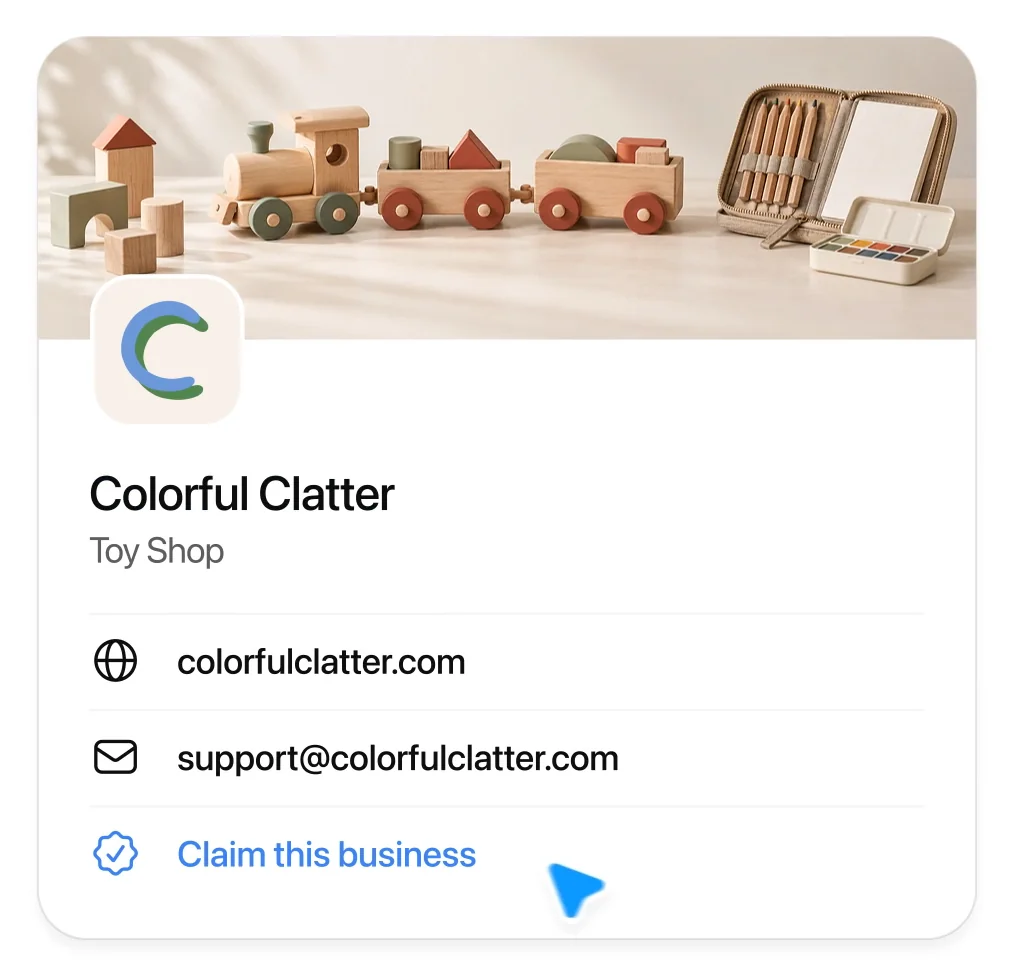
- Sign in to ChatGPT and open Business Hub from the sidebar. The direct address is
chatgpt.com/business-hub. - Search for your business by name.
- Select the listing that matches your business, and confirm the ChatGPT account you will use to manage it. Use the account you want to keep, because invites for teammates can depend on it later.
- Choose one of the verification methods shown (step 2).
Three things you might see instead:
- A claim invitation email. Open the personal link and sign in with the email address that got it. Do not forward it to anyone.
- Contact support. Your listing is locked. Select Contact support to ask for access.
- No listing at all. If you run an eligible online business, you may see an option to add it. Local stores and restaurants cannot add one yet.
04. Step 2: verify your claim
Step 2 of 7
ChatGPT shows the methods available for your business. Pick the one you control. These are the four the help article describes:
| Method | What you do | Good when |
|---|---|---|
| Business phone | Select Business phone, choose a text message or an automated call, select Get code and enter it | You answer the number on your listing |
| Business email | Select Business email, then Get code, and enter the code sent to the email linked to your business | You read that inbox |
| Website domain | Select Website domain, add the TXT record ChatGPT shows to your domain's DNS, then come back and select Verify domain | You (or your developer) can edit DNS |
| Shopify store | Select Shopify store, then Connect Shopify, review the permissions, log in to the store and follow the prompts | You sell on Shopify |
Tip for the domain method: copy the type, the name or host, and the value exactly as ChatGPT shows them. DNS changes can take a while to appear. If someone else runs your domain, send them the record and ask them to add it.
Then wait. OpenAI reviews the claim and emails you a decision or a request for more information. While it is under review you can select Cancel claim.
Already claimed by someone else? Open the profile, select the more options menu (•••), then Dispute ownership, and verify with Persona that you represent the business. OpenAI says claiming or disputing does not change the profile's visibility.
05. Step 3: the Persona ID check and the blue check
Step 3 of 7 · the one that unlocks everything
An approved claim gets you into Business Hub. It does not get you the blue check. OpenAI's help article is clear: the verified badge, shown as a blue check, appears after your Persona verification is approved. Persona is the identity check service OpenAI uses.
Documents to keep ready for the ID check
- A government-issued ID for you, the person verifying.
- Business registration information for the business.
- Proof you are authorized to represent the business, if you are not the registered owner.
- Matching details. The business name, address and any registration or tax number you enter should match your official business records. OpenAI names a mismatch as the thing to fix when a check fails.
That list is OpenAI's words: you "may need" these, so Persona might ask for less. It is still faster to have all of it open before you start.
- Select Verify with Persona, then Continue to Persona.
- Follow Persona's instructions and submit what it asks for.
- Wait. OpenAI reviews the submission and emails you. You can select Cancel submission while it is pending.
Used phone or email first? You can do Persona later: open the Business tab, select your profile, find Complete verification with Persona in your business overview, and select Verify.
One warning: if you use Persona to create a new profile, OpenAI's approval publishes it automatically. There is no separate publish step, so only continue when the details are right.
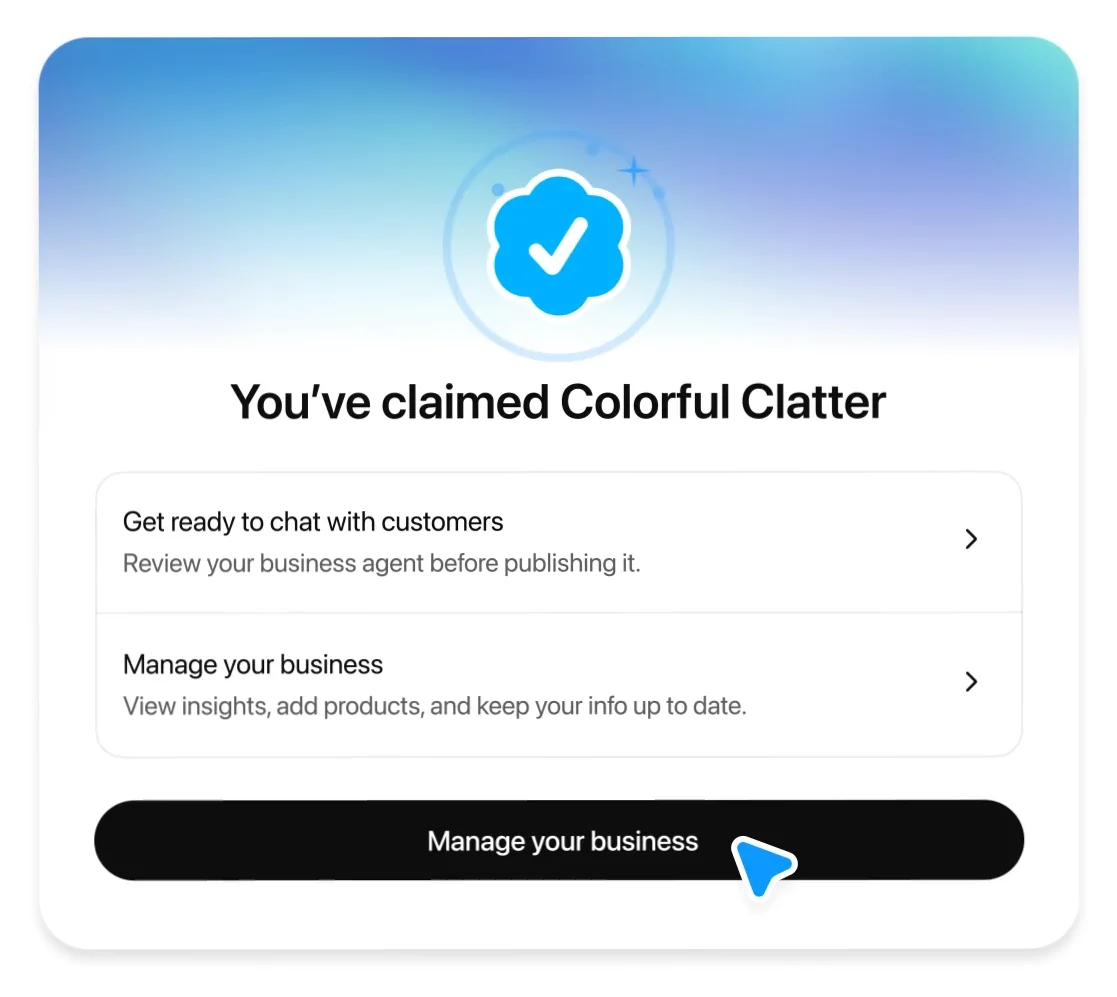
If it fails or expires, follow the email. If Try again shows up, submit corrected details. Submitting to Persona does not mean you are approved, and the locked features stay locked until you are.
06. Step 4: edit your business profile
Step 4 of 7
Once the claim and Persona are approved, open your profile in the Business tab. The help article lists what you can update: your website, business description, product or service category, logo, delivery policy and return policy, plus a cover photo and other optional details.
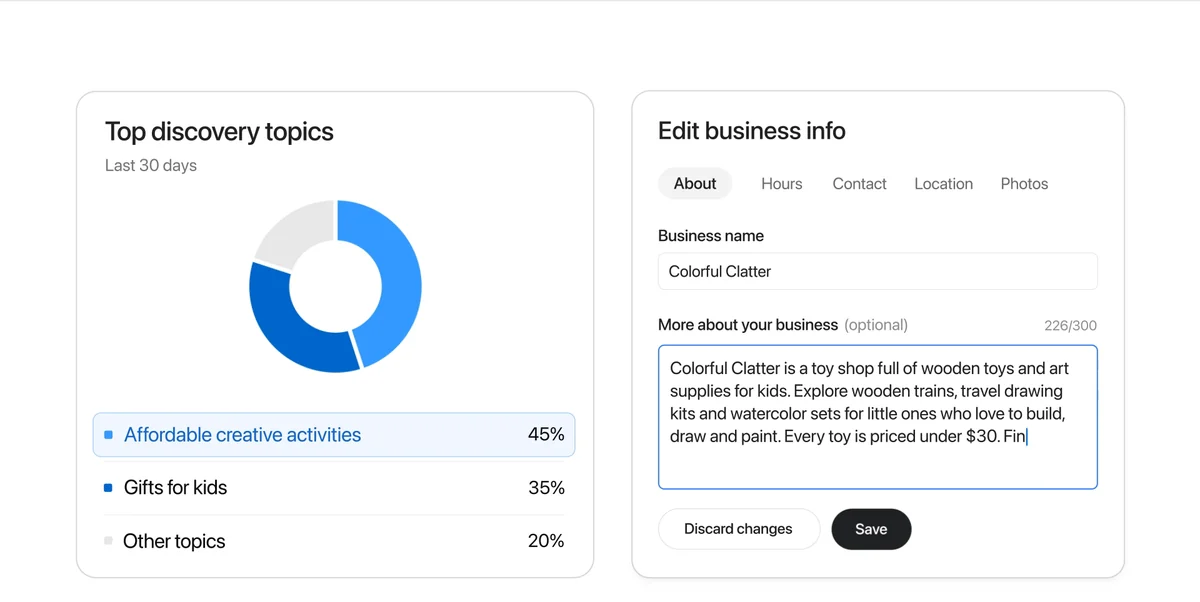
OpenAI's launch film also shows Hours, Contact (phone number, website) and Location tabs, and the Businesses in ChatGPT policy lists name, category, address or service area, hours, contact details and products or services as profile information you must keep accurate. The tabs in your account may differ while this is in beta.
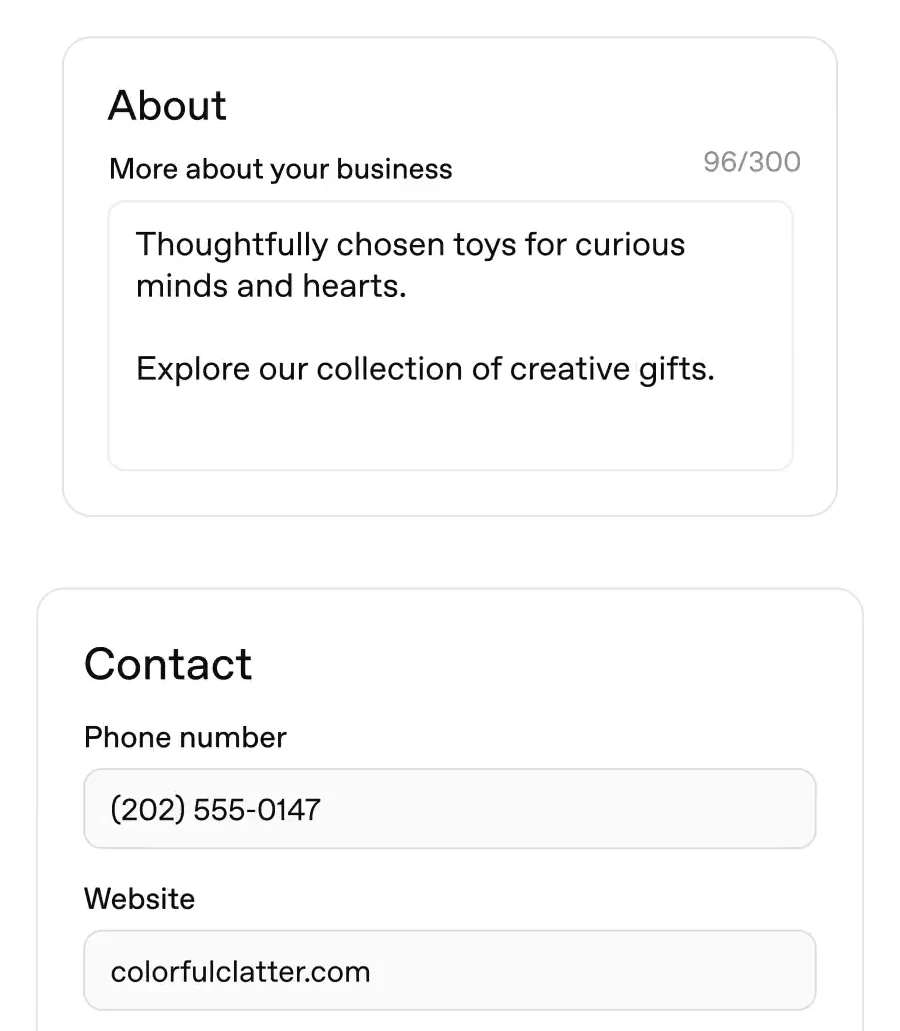
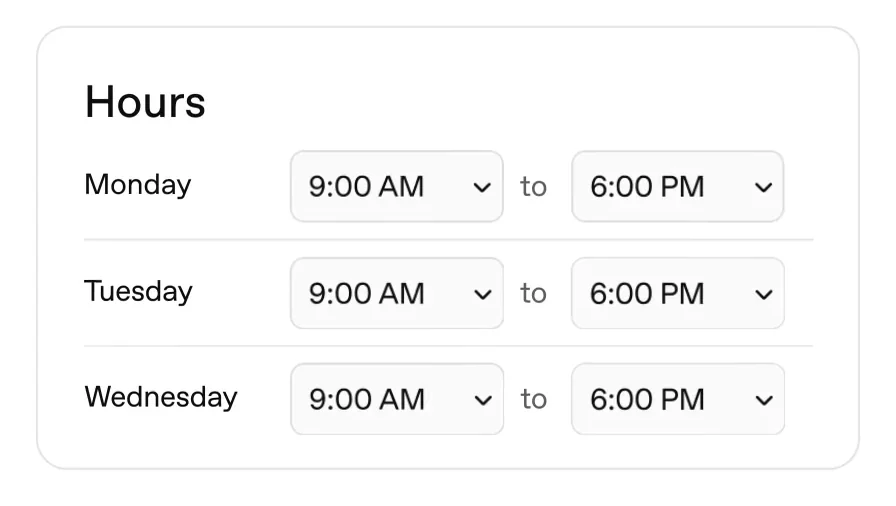
After you save, OpenAI reviews and publishes the change. A saved change will not show in every answer straight away.
07. What to write so ChatGPT gets you right
This is the part most people will rush. ChatGPT uses what you give it to answer real questions like "where can I get a gift under $30" or "do they take returns on sale items". Vague text gives vague answers. These rules come from OpenAI's two policies; the examples are mine.
Your description
- Say what, who and where in the first line. "A toy shop for kids aged 3 to 10, shipping across the US" beats "Thoughtfully chosen toys for curious minds".
- Add one concrete fact a buyer would ask about: a price range, a delivery area, a speciality.
- No hype words. The policy bans fabricated reviews or endorsements, unsupported guarantees and claims that hide fees or conditions. "Best in town" helps nobody and can get content rejected.
- Keep it short. The box in OpenAI's film stops at 300 characters, so every word has to earn its place.
Weak (OpenAI's first demo text): "Thoughtfully chosen toys for curious minds and hearts. Explore our collection of creative gifts."
Better (OpenAI's own edit in the same film): "Colorful Clatter is a toy shop full of wooden toys and art supplies for kids. Explore wooden trains, travel drawing kits and watercolor sets for little ones who love to build, draw and paint. Every toy is priced under $30. Find their next toy!"
Notice what changed: the kind of shop, actual products, and a price line a buyer can act on.
A template you can fill in (mine, not OpenAI's):
[Business name] is a [type of business] for [who it is for] in [city, region or "across the US"]. We sell [2 or 3 real products or services]. [One concrete fact: price range, delivery area, speciality or years running].Delivery and return policy
- Write the rule, not the vibe. "Free delivery on orders over $150. Returns within 45 days." is exactly what OpenAI's demo profile shows, and it is what a buyer asks.
- Include the conditions. Sale items, custom orders, who pays return shipping. The policy says not to hide material terms such as fees or conditions.
- Match your website. If your site says 30 days and ChatGPT says 45, you have a support problem.
Hours, contact and location
- Use the same name, address and phone as your official records and your Google listing. The same details also have to match for the Persona check.
- For an online-only business, set a service area rather than leaving location blank.
- Update holiday hours. OpenAI's policy says information must be kept current, not just correct on day one.
Then test it
Ask ChatGPT the questions your customers ask: "what does [your business] sell", "do they deliver to [city]", "what is their return policy". If an answer is wrong, fix the field that should have answered it. Remember OpenAI reviews changes, so give it time before you test again.
08. Step 5: connect a product feed
Step 5 of 7 · only if you sell products
A product feed shares your products, prices and availability with ChatGPT. You can connect a Shopify feed, upload a CSV file that follows OpenAI's product feed specification, or give a hosted URL that links to the feed file. Connecting a feed does not publish an agent and does not guarantee ChatGPT recommends your products.
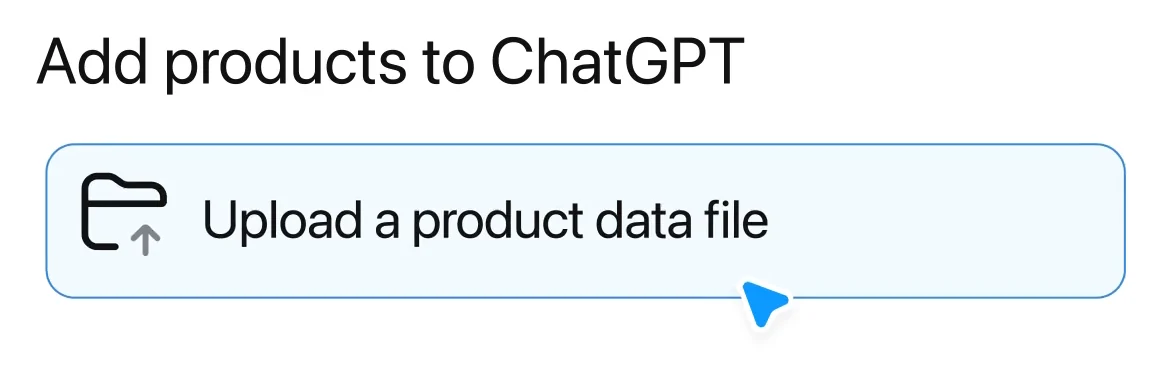
The spec has nine required fields. Every row needs all nine:
| Field | What goes in it | Example |
|---|---|---|
item_id | A stable ID, unique per item or variant. Never reuse it | MUG-350-BLUE |
title | Product name, with the variant when it matters | Blue ceramic mug, 350 mL |
description | Factual, plain-text description | Dishwasher-safe glazed ceramic mug with a handle. |
url | The product page, with the variant selected if you can | https://example.com/products/mug-blue |
brand | The brand as shown on the product page | Northline |
seller_name | Who sells this offer | Northline Home |
image_url | A direct JPEG or PNG link to the main image | https://example.com/images/mug-blue.jpg |
availability | in_stock, out_of_stock, pre_order, backorder or unknown | in_stock |
price | Amount, a space, and a three-letter currency code | 18.00 USD |
The examples are OpenAI's, from the spec. Here is the same item as one CSV row (my conversion of OpenAI's JSONL example):
item_id,title,description,url,brand,seller_name,image_url,availability,price
MUG-350-BLUE,"Blue ceramic mug, 350 mL",Dishwasher-safe glazed ceramic mug with a handle.,https://example.com/products/mug-blue,Northline,Northline Home,https://example.com/images/mug-blue.jpg,in_stock,18.00 USD
Feed tips straight from the spec:
- Real names only. Use a real brand and seller name, never placeholders.
- Titles up to about 150 characters, descriptions up to about 5,000, in plain text.
- Always fill availability. A blank or made-up value rejects the row. Use
unknownonly if you truly do not know. - Write prices like
18.00 USD, two decimals for dollars, no thousands separators. Update the feed when a sale starts or ends;sale_pricemust be lower thanprice. - Leave unknown optional fields empty. Do not type null, n/a or unknown in them.
- Public links only. Product and image URLs must open for anyone, over HTTPS where possible.
- Quote any CSV cell with a comma in it, like the title above.
- Variants: one row per size or colour, each with its own
item_id, the samegroup_id, andlisting_has_variationsset to true.
Products in the feed must also follow OpenAI's Commerce policies.
09. Step 6: read your Insights
Step 6 of 7
Open your business in Business Hub and select Insights. It shows aggregate activity over the past 28 days:
- Mentions. For an online business, a mention counts when ChatGPT references your website. Your brand name alone does not count. For a local business, it counts when ChatGPT shows a result for that location, even if nobody opens it.
- Website clicks. How often people click through to your site.
- Discovery topics. Common themes in ChatGPT answers that mentioned or cited you, such as "gifts for kids". They are grouped themes, not real questions people typed.
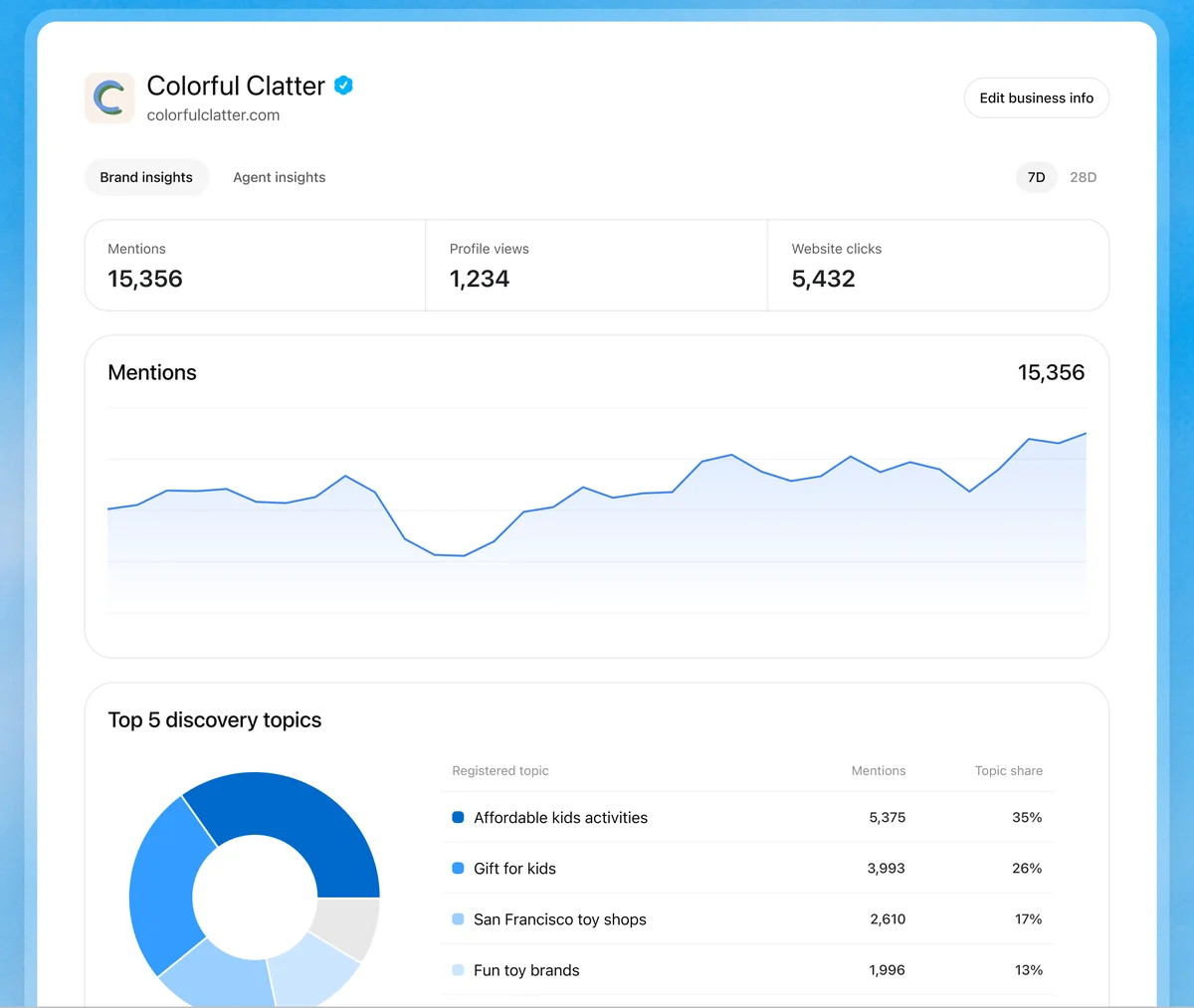
Two things to know. You never see individual prompts or chats, including chats with your own agent. And a blank number does not mean zero. It can mean activity has not reached the reporting threshold, or data is still coming in. If a number stays blank, OpenAI says to contact support.
The useful habit: look at your discovery topics once a month. If ChatGPT keeps citing you for a topic your description never mentions, add it. If a topic you care about is missing, that is a gap in what you have told it.
10. Step 7: a Business Agent (US only)
Step 7 of 7 · optional
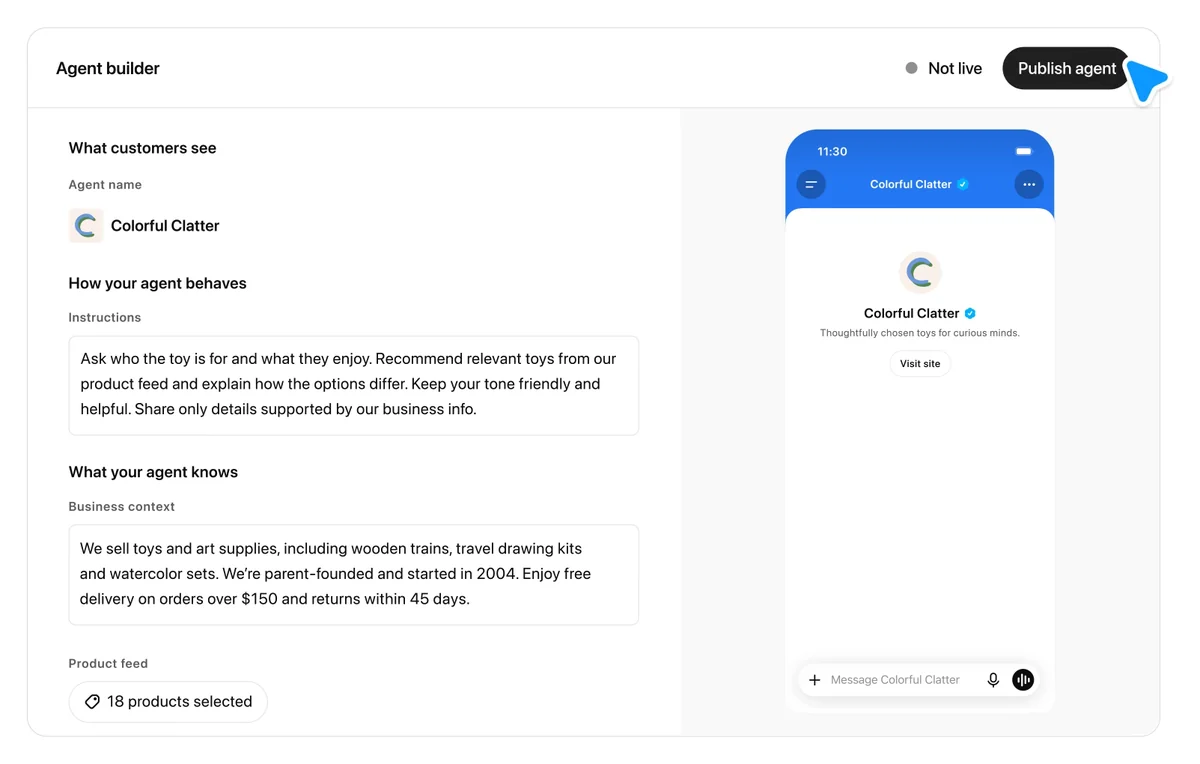
A Business Agent answers customer questions inside ChatGPT using information you provide. When your business shows up in an answer, people can open your profile and choose to start a conversation with it. That chat is clearly labelled and kept separate from their main ChatGPT conversation.
Who can have one, today: eligible ecommerce and online service businesses in the US, with a website, that meet the industry rules in the Business Agents Policy. You also need an approved claim and an approved Persona check. OpenAI says verification alone does not guarantee agent eligibility.
- Open your business in the Business tab. If Shopify setup already made a draft agent, open it. Otherwise create one, if the option shows.
- Review what the agent will use, such as product details and your return policy.
- Write instructions for how it should answer, following the Business Agents Policy.
- Preview it with a question customers often ask. OpenAI's example: "Can I return an item I bought on sale?" If the answer is wrong, fix the information or instructions and test again.
- Select Publish when you are ready. Customers can only chat with a published agent.
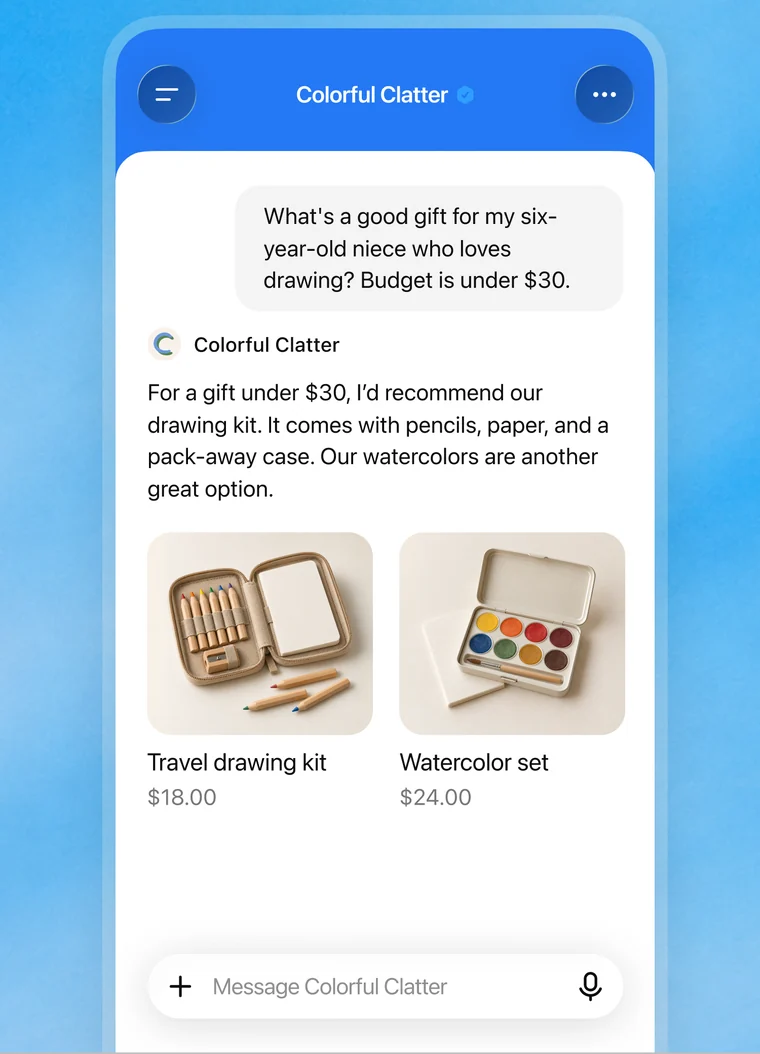
What it cannot do yet: complete purchases, make bookings or check a customer's order. It explains products and policies and links to your website, where the customer finishes.
What the policy says your instructions must not do: invent offerings, prices, stock, reviews or guarantees; pretend to be a human or an independent adviser; pressure people or create false urgency; ask for unnecessary personal data like government IDs or payment details; or give advice that needs a professional licence.
Starter instructions you can adapt (mine, written to fit that policy):
You are the AI assistant for [business name] and you say so if asked. Help customers find the right [product or service] using only our product feed and the policies on our profile. Ask what it is for and their budget, then suggest one or two options with the price. If a detail is not in our information, say you do not know and link to [contact page]. Mention delivery and return conditions when they matter to the question. Never promise stock, discounts or delivery dates that are not in our information, and do not keep pushing if the customer says no.OpenAI also lets you sponsor your Business Agent and use it as the destination for ChatGPT Ads. That is separate from claiming and optional.
11. Doing this for clients
If you build websites or run marketing for small businesses, this is a service your clients will ask about soon. OpenAI already planned for it: the admin who claimed a business can add teammates in Business Hub and grant an agency access to manage the business or its agent. Each person uses their own ChatGPT account.
- The client claims, you manage. The claim and the Persona check have to come from someone who represents the business, with their own ID and documents. Do not claim a client's business on your account.
- Never forward a claim invitation. OpenAI says not to share a personal claim link to give someone access.
- Workspace catch: if the business was claimed inside a ChatGPT workspace, invitees may need to be members of that workspace.
- One brand at a time. Each brand is managed separately, and claiming the main brand does not claim its locations.
A simple offer: claim and verify together on a call, then you write the description, policies and product feed, and check Insights monthly. If you are new to selling a service like this, my first client playbook covers pricing and the first conversation. For businesses that also want calls answered, see the AI receptionist guide.
FAQ
How do I claim my business in ChatGPT?
Sign in to ChatGPT, open Business Hub from the sidebar (or go to chatgpt.com/business-hub), search for your business by name, pick the matching listing and verify it with one of the methods shown: business phone, business email, website domain or Shopify. OpenAI reviews the claim and emails you. Then complete the Persona identity check to edit your profile, see insights or build an agent.
Will claiming my business make ChatGPT recommend it more?
No. OpenAI says claiming does not guarantee higher placement or sales, and ChatGPT keeps making independent recommendations. Claiming lets you supply accurate information, and advertising does not influence ChatGPT's independent answers either.
What documents do I need for the ChatGPT business ID check?
OpenAI's help page says you may need a government-issued ID, business registration information, and proof that you are authorized to represent the business. The business name, address and any registration or tax number you give should match your official business records.
When do I get the blue check in ChatGPT?
The blue check, OpenAI's verified badge, appears after your Persona verification is approved. Claiming the business alone does not add it.
Who can create a Business Agent in ChatGPT?
Right now, eligible ecommerce and online service businesses in the US that have a website and meet the industry rules in OpenAI's Business Agents Policy. You also need an approved claim and approved Persona verification. Other businesses can still manage a profile without an agent.
What do Insights show in Business Hub?
Aggregate activity over the past 28 days: mentions, website clicks and discovery topics, which are common themes in ChatGPT answers that mentioned or cited your business. You never see individual prompts or conversations, and a blank number can mean the data has not reached the reporting threshold yet, not zero activity.
Can an agency or freelancer manage a business in ChatGPT for a client?
Yes. The admin who claimed the business can add teammates in Business Hub and grant an agency access to manage the business or its agent. Each person uses their own ChatGPT account, and OpenAI says not to forward a personal claim invitation.
Is Businesses in ChatGPT available outside the US?
Claiming is open to eligible businesses where ChatGPT is available and the required verification is supported, and availability depends on the business's location and type. Local stores and restaurants can currently claim only an existing US listing, and Business Agents are US only for now.
What I checked, and what I did not
On 13 November 2026 I read these OpenAI pages in a browser: the launch post Introducing Businesses in ChatGPT (10 November 2026), the help article Setting up your business on ChatGPT, the Businesses in ChatGPT page and FAQ, the Businesses in ChatGPT policy, the Business Agents Policy and the product feed specification. Every step, limit and quote above comes from those pages. Business Hub needs a ChatGPT login and I did not claim a business, so the screens are OpenAI's launch images and frames from OpenAI's launch film, with OpenAI's demo shop and demo numbers. The verification screens for phone, email, DNS and Persona are not in OpenAI's public images, so those steps are written out in words. The description template, the agent instructions, the CSV conversion and the client tips are mine. OpenAI's pages do not mention a price for claiming. This is a beta and the help article changes often, so check it again before you rely on a menu name.
Your customers are already asking ChatGPT about you. Claim it, and give it the right answer.
// Free newsletter
I send out guides like this every week
Real setups, real sources, no hype. Drop your email and I'll send you the next one.